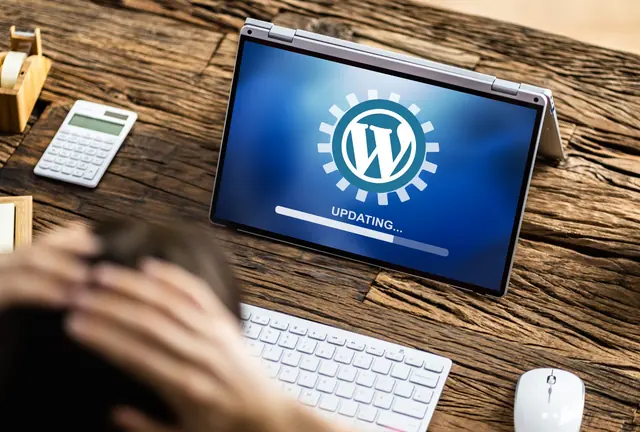
WordPress 7.1.5 Security Release: What It Fixes and How to Update Safely

On 18 November 2026, WordPress released version 7.1.5, along with 7.0.9 for sites still on the 7.0 branch. Together they fix 20 security problems, and the WordPress project's own advice is blunt: "Because this is a security release, it is recommended that you update your sites immediately."
Most security releases are routine. This one is worth a closer look, because a few of the fixes can be triggered by someone who isn't logged in at all. Here's what was fixed, which sites are most exposed, and how to update without breaking anything.
The release at a glance
| Question | Answer |
|---|---|
| Released | 18 November 2026 |
| Versions to install | 7.1.5 if you're on 7.1, or 7.0.9 if you're on 7.0 |
| Security fixes | 20, including two hardening changes |
| Most serious | An unauthenticated privilege escalation through Template Part block attributes that could lead to remote code execution |
| Older versions | Fixes are offered as a courtesy for older branches back to 4.7. WordPress 4.6 and earlier get nothing |
| Does auto-update cover it? | Often, but not always. Check, don't assume |
What the release fixes, in plain English
The official release notes list each fix along with the level of access an attacker would need. That access level is the most useful thing to look at, because it tells you who could actually use the flaw against your site.
Problems anyone on the internet could exploit
- Privilege escalation through Template Part blocks. The most serious fix. The notes describe an unauthenticated privilege escalation through Template Part block attributes "that could lead to remote code execution". Put simply, a stranger could potentially gain powers they should never have, up to running their own code on your server.
- Stored cross-site scripting (XSS) through comments. Shortcode attributes in comments could be used to plant malicious script. Stored XSS means the script sits on your site and runs in the browser of whoever views it, which can include you, logged in as an administrator.
- Denial of service through XML-RPC pingbacks. Batched pingback requests could be used to overload a site.
- Private taxonomy terms exposed through the REST API search endpoint.
Problems that need a user account
Several fixes need an account of some kind, from Subscriber upwards. They matter most on sites where people other than you can log in:
- Contributor-level stored XSS in the Comment Date block, in oEmbed responses, and in media filenames when a media block is converted to a File block.
- An Author-level bypass that allowed comment editing in the admin, and Author-level exposure of users' email addresses through the REST API comments endpoint.
- Subscriber-level information disclosure through XML-RPC's
wp.getComments. - Editor-level information disclosure through post and template author assignment in the REST API.
Database and multisite issues
- Two SQL injections: one in
WP_Meta_Querythrough nested relation values, and one through the front page setting in Customizer changeset previews. - On multisite networks, a site Administrator could take over a Super Admin account through Customizer menu previews.
- Several other XSS fixes, in the legacy media library popup, the block editor's Openverse image details, Customizer previews and the Interactivity API.
Who is most at risk
Every site on an unpatched version should update. But some setups are more exposed than others, based on which fixes apply to them.
Sites that accept comments
The comment XSS needs no login. If your site has comments open, even on old posts you've forgotten about, that's a door anyone can knock on.
Sites with contributor, author or customer accounts
Membership sites, multi-author blogs, shops with customer logins and any site with open registration have more people who can reach the account-level flaws. The more accounts, the bigger the risk that one of them is in the wrong hands.
Multisite networks
If you run several sites from one WordPress installation and give other people Administrator access to their own site, the Super Admin takeover fix applies directly to you.
Sites with XML-RPC switched on
XML-RPC is an older way for apps and services to talk to WordPress. Many sites no longer need it but still have it enabled. Two of the fixes go through it, including the pingback denial of service.
Sites on old versions
The 7.1.5 notes say "only the most recent version of WordPress is actively supported". Fixes for older branches are a courtesy, and the announcement says those backports ship as they become ready. If you're several major versions behind, this is a good moment to plan a proper upgrade rather than relying on backports. Our WordPress update guide walks through it.
How to check which version you're running
- Log in to your WordPress dashboard.
- Go to Dashboard > Updates. It shows your current version and whether a newer one is available.
- You can also look at the "At a Glance" box on the main dashboard, or the version number at the bottom right of most admin screens.
If it says 7.1.5 (or 7.0.9 on the 7.0 branch), you have the fixes. If it says anything lower on those branches, you don't.
Why auto-update may not have applied it
The announcement says that sites which "support automatic background updates" will start updating automatically. Plenty of sites don't, and their owners often don't know. Common reasons:
- Updates are switched off in the configuration. A developer or host may have disabled automatic core updates in
wp-config.phpor with a plugin, often years ago. - The host manages updates instead. Some hosts turn off WordPress's own updater and run updates on their own schedule.
- File permissions block it. If WordPress can't write to its own files, the update silently fails.
- The site is under version control. WordPress skips automatic updates when it detects that the install is managed this way.
- Low traffic. WordPress's scheduled tasks run when someone visits. A quiet site can lag behind.
- A failed attempt. A timeout or a full disk can stop an update part-way, leaving the site on the old version.
That's why the only reliable answer is to check the version number yourself. We've written more about the trade-offs in automatic WordPress updates.
A safe update sequence
A security update shouldn't wait, but it also shouldn't be done blind. This is the order we'd follow.
1. Back up first
Take a full backup of both the files and the database, and make sure it's stored somewhere other than the server itself. A backup you've never restored is a hope, not a plan. Our piece on guaranteed website backups explains what a good one looks like.
2. Update
Go to Dashboard > Updates and click Update Now. On a busy or important site, try it on a staging copy first if you have one, then update the live site straight after.
3. Test
Once it's done, check the things that earn you money or enquiries: the homepage, contact forms, checkout, logins and any page built with the block editor. Clear any caching so you're seeing the real site.
4. Check for signs of earlier trouble
Updating closes the door, but it doesn't tell you whether anyone walked through it beforehand. After updating, look for:
- User accounts you don't recognise, especially Administrators, or existing users whose role has changed.
- Comments containing odd code, shortcodes or scripts.
- Files changed recently that you didn't change, particularly PHP files in the uploads folder.
- In your server's access logs, bursts of requests to
xmlrpc.phpor unusual requests to the REST API.
If anything looks wrong, change passwords, remove unknown accounts and get help before restoring from a clean backup. Our WordPress security checklist covers the wider hardening steps.
5. Reduce the attack surface
While you're there, it's worth asking whether you still need comments open on old posts, open user registration, or XML-RPC. Anything you don't use is one less thing to patch next time.
Frequently asked questions
I'm on WordPress 7.0. Do I have to move to 7.1?
Not to get these fixes: 7.0.9 contains them. But only the latest version is actively supported, so plan to move to 7.1 soon.
Do my plugins need updating too?
This release is for WordPress core. Plugins and themes have their own updates, so check those at the same time.
Is a firewall enough instead of updating?
No. A firewall can block some known attack patterns, but the fix itself is the update.
Let someone else keep watch
Security releases arrive without warning, and the safe way to apply them is always the same: back up, update, test, check. If you'd rather that was someone else's job, that's exactly what our WordPress maintenance service is for.
Sources and further reading
- WordPress 7.1.5 release announcement (WordPress.org)
- Version 7.1.5 release notes (WordPress.org documentation)
- Version 7.0.9 release notes (WordPress.org documentation)
- WordPress release archive (WordPress.org)